Everything in OzTrady
Everything below works in the browser and on the crew’s phones. Some parts depend on your plan: see plans side by side. It works with Xero, Google Maps, WhatsApp and email, and is set up for your trade.
Quotes, invoices and money
See what every job is worth and what is still to come in: quotes your customers accept online, deposits and progress claims, invoices and payments, and the profit on each job so far.
See it full size ↗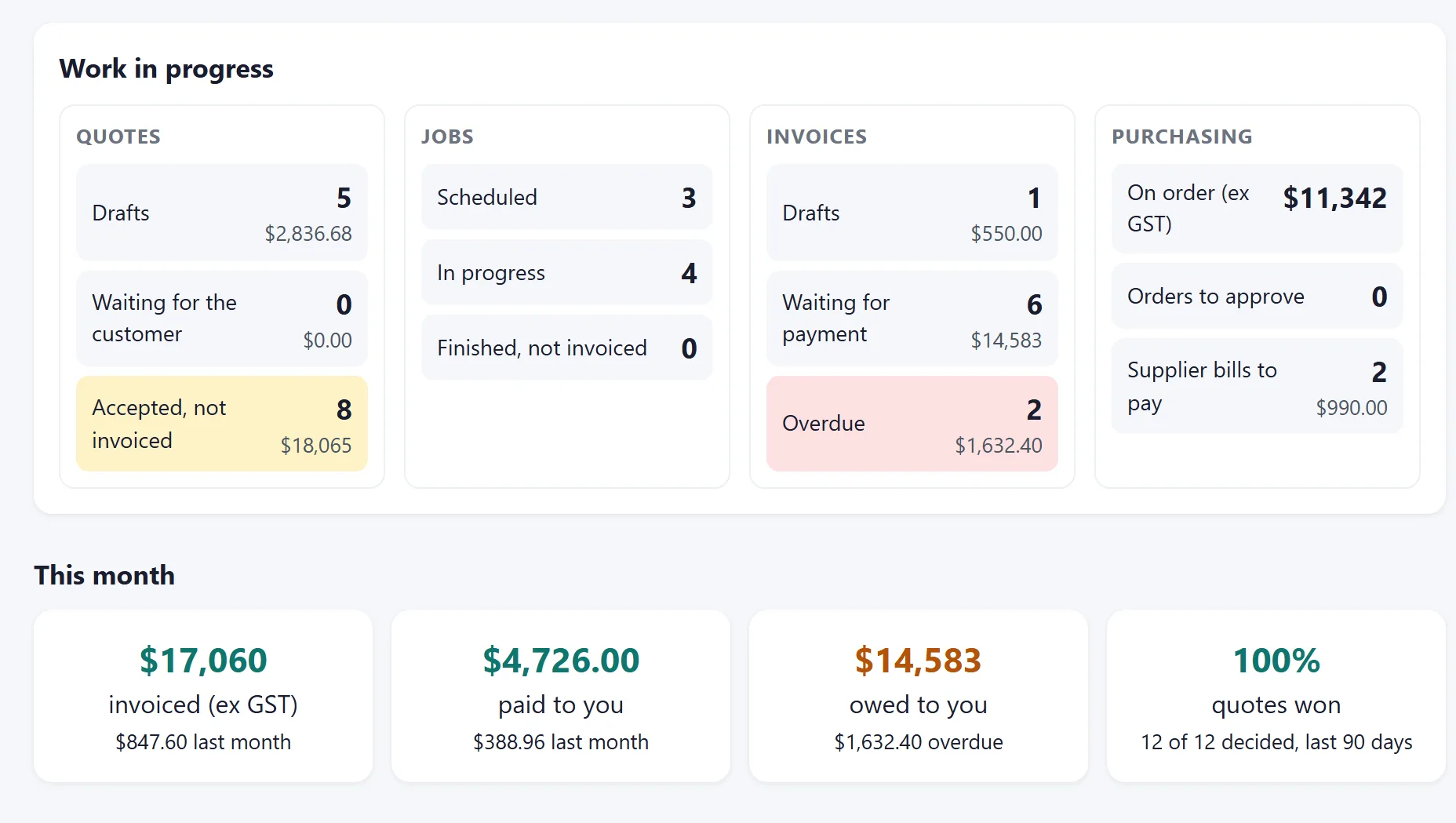
A dashboard that shows where the money is
Open OzTrady and the dashboard starts with what needs you: jobs that should have started, overdue invoices, orders to approve, timesheets to approve, crew requests and licences running out. Then today’s jobs and who is on site, and your work in progress at each stage with its money: quotes waiting and accepted but not yet invoiced, jobs on and finished but not invoiced, invoices owing and overdue, goods on order and supplier bills to pay. Owners also see this month’s invoiced, paid and owed against last month and how many quotes were won. Everyone sees only what their role allows, and their own tasks.
Quotes
Start a quote when the enquiry comes in, with the customer, the site address, the person to deal with and site photos, and add the prices after the visit. Give each quote a title (it becomes the job's title), and quote with GST, a valid-until date, a deposit on acceptance, your licence number and your own terms and conditions (saved once, ready on every new quote, changeable per quote, with a signature block on the PDF), and attach plans, brochures or photos: each is for your team only, or shown to the customer too. Send it by email, or press WhatsApp to customer: WhatsApp opens on your phone or computer with their mobile and a message with the link, ready to send from your own WhatsApp. Your customer opens the quote online from a private link, in your colours, and accepts it (typing their name) or declines it with a reason: it updates by itself. Each quote has someone who looks after it, who is told when the customer opens, accepts or declines it, reminded to follow up after a week with no reply, and warned before it expires. Convert an accepted quote to an invoice in one step, from the quote or straight from the Quotes list, or invoice it in parts: a deposit as a percentage, progress claims by amount or by line, then the balance, with GST right on every line and nothing invoiced twice. Extra work agreed on site is added as a variation, which the customer accepts online like a quote. Quoted before there was a job? Create the job from the accepted quote in one step (customer, contact person, site, owner and the quoted work filled in, its photos and documents copied, and a task per line if you like), or link the quote to a job you already have: its variations and invoices go with it. (Every plan.)
Invoices
Tax invoices with the site where the work was done (from the quote or the job), your ABN, legal name, licence number and contact details from your business details (entered once, on every quote, invoice and order; not registered for GST? they say Invoice instead), due dates and payment terms, partial payments, a PDF by email with a copy to you, or WhatsApp to the customer, and a history of everything that happened to each one. Each invoice has its own online page on your letterhead, where the customer sees what is left to pay, by when and how, and downloads the PDF; you see when they opened it. Every job shows what was quoted, accepted, invoiced, paid, still owing and still to invoice. (Every plan.)
Your letterhead on every document
Quotes, invoices and purchase orders carry your logo, your colour and the business details you choose (the ABN always shows, as a tax invoice needs it), on the PDF and on the pages your customers and suppliers open. Put the logo left, centred or right, call quotes Quote, Estimate or Proposal, add a footer to every page, number the pages, show or hide the GST column, and add a payment slip to invoices. A preview and a sample of each document show how they look before you send one. (Every plan.)
Emails to customers
Quotes, invoices and purchase orders go out as an email with your logo and colours, a summary of the amount and dates, and a button to view and accept the quote or confirm the order. Write your own wording for each kind of email, add a business signature, and let each person add their own. Every quote, invoice and order lists the emails sent and whether they were delivered or bounced. Switch on automatic reminders for overdue invoices (for example 3, 7 and 14 days after the due date) and follow-ups for quotes with no answer, sent on weekdays in business hours. (Every plan.)
Job profit
Each job shows what it earns against what it has cost so far: labour from the time on the job at each person's rate, materials from stock and other purchases delivered to it, with the profit and margin. Only people who can see pay see it. (Every plan.)
Xero
Send quotes and invoices to Xero so your bookkeeper does not retype them. Accept the quote, make the invoice and take payments in Xero as usual: every few minutes OzTrady reads them back, so each job shows what is paid and still owing. (Enterprise plan, or as an add-on.)
Jobs, workflows and scheduling
Plan the work once as a workflow. Every job then arrives with its steps, tasks, people and due dates, and a progress bar that shows what is really happening.
See it full size ↗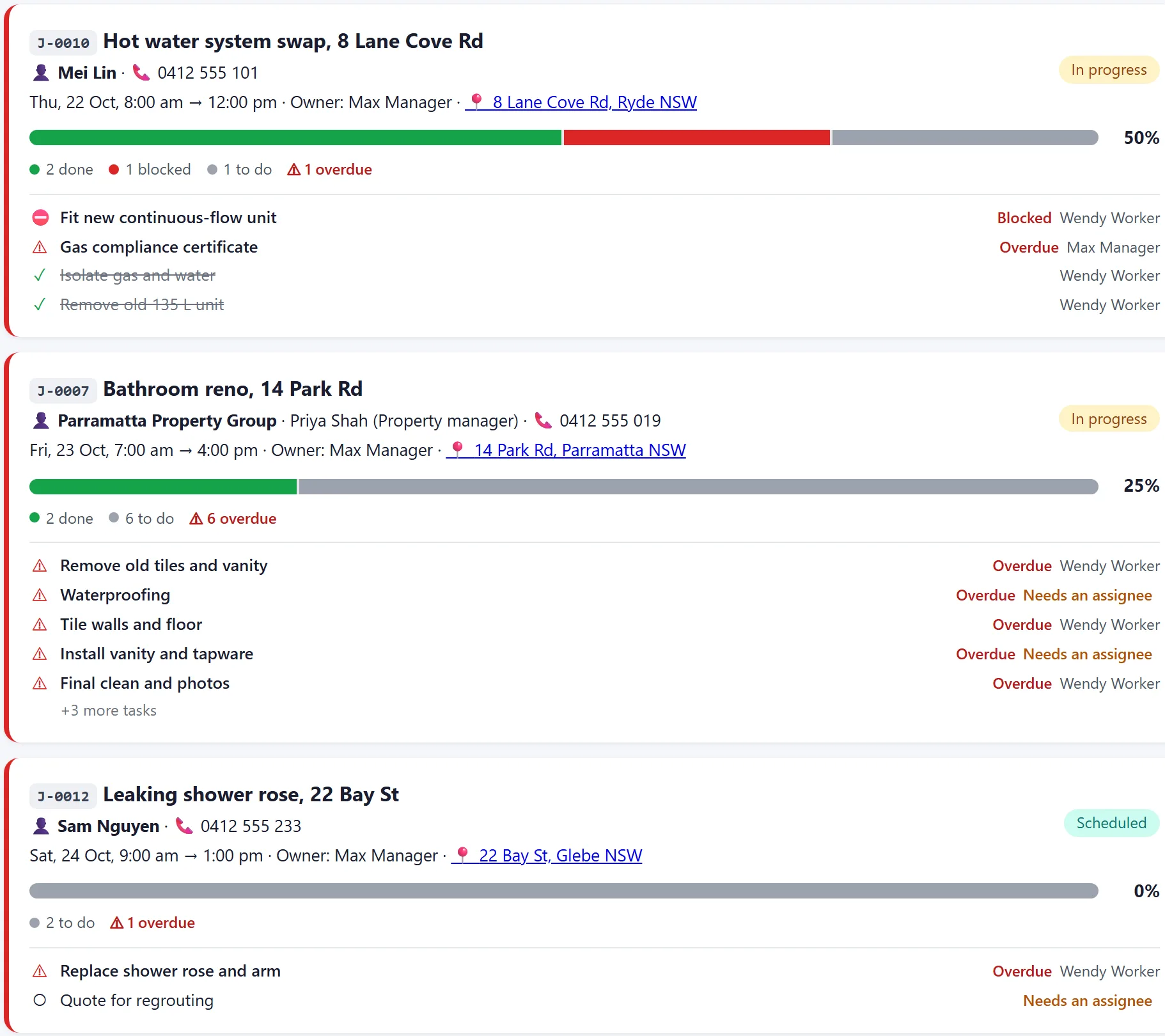
See everyone’s day or week, and drag a job to move it.
See it full size ↗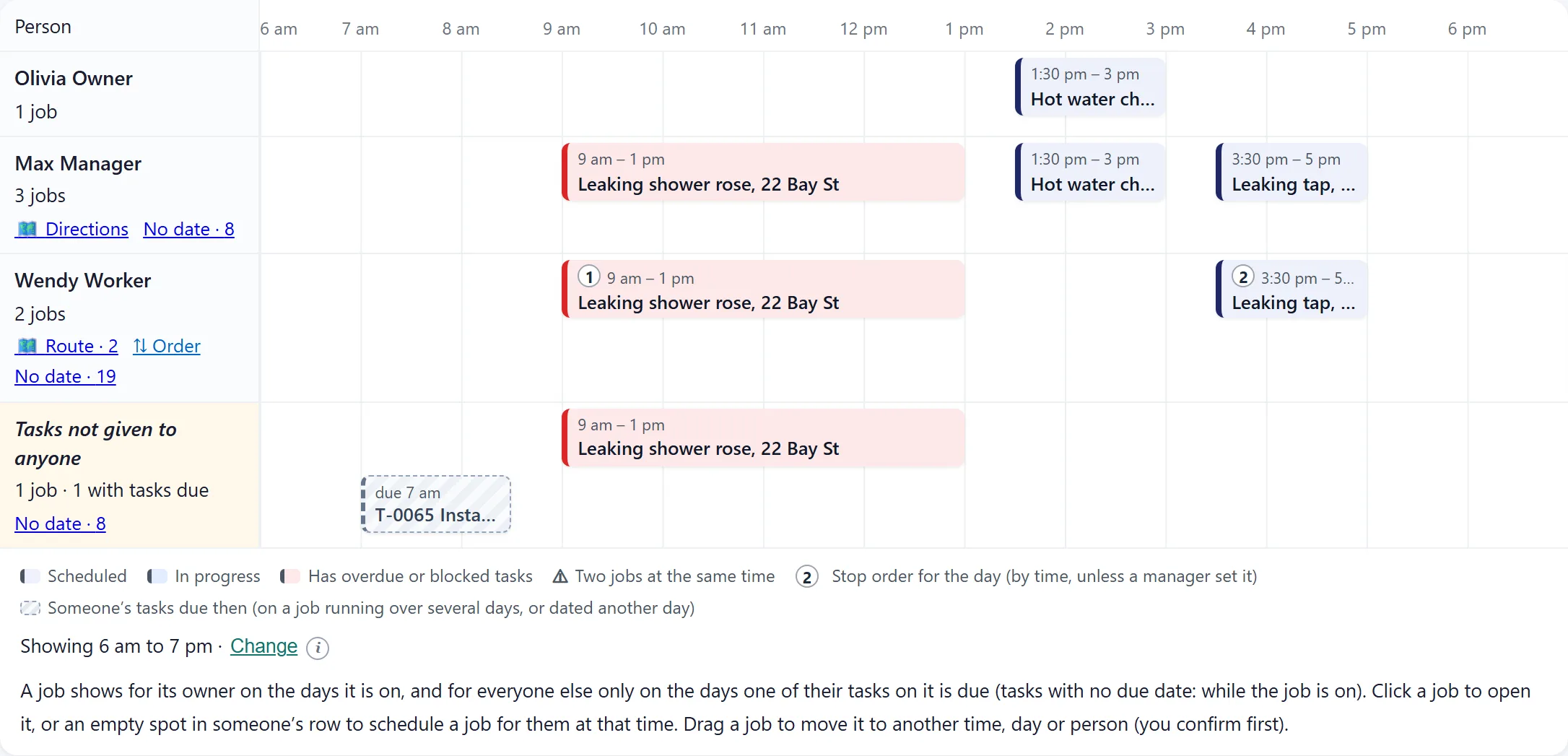
Job and task numbers
Every job and task gets a short number (J-0042, T-0012) to read out on the phone, type into a search, or note on a docket. Each business has its own, and a number is never used twice.
Priority, on hold and archive
Mark a job Urgent, High, Normal or Low: urgent and high jobs stand out on the jobs list, the job page, the Schedule and the crew’s tasks, lists can put urgent ones first, and the people on a job are told when it becomes urgent. Put a job on hold with a reason (waiting for parts or for the customer): its tasks pause and it drops out of the day’s routes until it is taken off hold. Archive finished jobs, one or many at once, to keep the lists short: they stay on the Archived tab, read-only, with everything kept.
Job board with real progress
Each job shows a bar split by done, in progress, blocked and to do, a count of overdue tasks, the next due date and a coloured edge. Tasks needing attention are listed first. Search finds any job or task, current or finished, by its name, address, customer, person or step.
Workflows for your trade
Define the steps a job goes through, the tasks in each step, who usually does each task and when it is due. Start a job from a workflow and every task is created for you, with people and due dates filled in (change any of them, or assign later), grouped under its step with its own progress bar. Steps can go in order: the next step’s crew are told when they can start, and the job owner or a manager can open a step early. Moving back a step is allowed when work needs redoing. Each step can send its own messages when it starts or is finished: tell the job owner, the people on it, a role or named people, and send the customer an update by email or WhatsApp in your own words (for example “Hi Jo, we’re on site”). A task on its own can follow your own list of stages too (for example To call, Called, Won), with the same messages.
Notes on jobs and tasks
Everyone on a job keeps notes where the work is: gate codes, what was found on site, what the customer asked for. Each note says who wrote it and when, important ones are pinned to the top, and you can tell the people on the job as you add it. The job shows its own notes and its tasks’, each with its task number; changes are marked and kept in the history, and nothing is deleted. On the website and in the phone app.
Task list for big jobs
Every job’s tasks can be shown as a list (a table) instead of cards: grouped by step, status or person, each group folding away with its count, progress and dates. Columns for the task number, status, who has it, start, due date and duration; change the status or person from the list (you confirm first), set dates in place, drag tasks into the order they should be done or into another step, tick several to give them to someone, move their dates or remove them at once, and search by name, number or person. Built for jobs with hundreds of tasks.
Tasks, with or without a job
Simple tasks stand alone, and anyone can add a task for themselves. Tasks on a job roll up into its progress, and the job completes by itself when every task is done. Lists are sorted by due date, soonest first, or by newest, oldest, task number, title or job, and each person's choice is remembered.
Copy a job
Doing the same kind of job again? Copy it to a new date in one step: details, workflow and every task come along, with the same people if you like, due dates moved to match, and the job’s photos and documents copied too. Its accepted quote can come along as a new draft quote (customer, site, lines, terms and deposit, with any accepted variations), and its invoices as new drafts for repeat work billed the same way.
My Tasks panel
A panel on every screen shows what is on your plate, grouped into overdue, today, the next 7 days and later, with tasks still waiting for an earlier step marked, filtered to one job or all of them. Click a task to go straight to it. Managers also see what is waiting for them: timesheets to approve, check-outs to set, quotes to follow up, licences running out, and blocked or unassigned tasks.
Addresses and directions
Start typing a job’s address and pick the right one from the suggestions, so it is spelled correctly and pinned on the map. Every address is a link to the map, with directions from where you are. Open the day’s jobs as a single trip, in start order, in Google Maps.
Schedule
A day or week view with a row for each person: the jobs they run, and their tasks on the days they are due (a one-day job at its booked time, a longer job at the time their task is due), coloured by how it is going, with a warning when someone has two jobs at the same time. Each person's stops for the day are numbered in the order they will attend them (their manager's order, or by time), and tasks with no due date are listed underneath, person by person. Drag a job to another time, day or person: you see what changes first (the tasks' due dates move with it, and a warning if someone is already busy or lacks a licence), add a note, and the people on the job are told. Click an empty spot to book a job for that person at that time, filter to one person or the jobs you run, and open each person's day as one route in Maps from where they are, through the jobs of their own tasks that day in the order they are expected. Everyone gets the same route for any day on their Dashboard. The crew see their own row. The Jobs list shows every job in start order, with search.
Customers and updates
Every customer and their people in one place, and updates that send themselves to your team and the customer as the job moves along.
See it full size ↗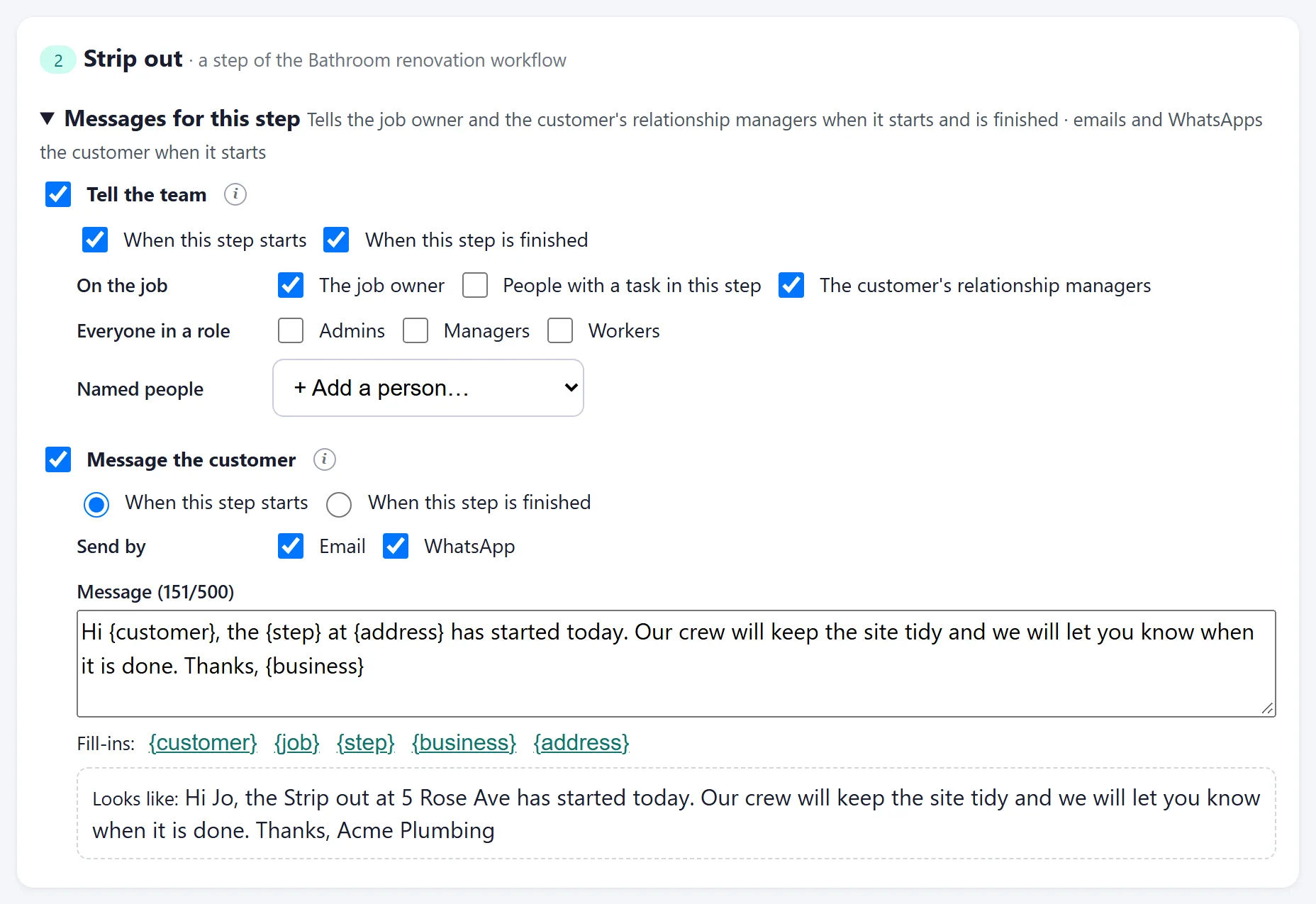
Customers and contacts
Keep each customer in one place: a company with any number of contact people, or a private homeowner, with phone, email, billing and site address. Pick the customer and the person to deal with when you schedule a job, or add a new customer right there; the jobs list shows each job's customer, contact person and phone; the crew sees who to call, with one tap to ring them, and invoices fill in the billing details. Give each customer one or more relationship managers from your team: they see the customers they look after in one tap, and hear when a job for them is scheduled or completed and when the customer accepts or declines a quote online.
Notifications on the move
People are told when work is given to them or changes: new tasks and jobs, steps that can start, timesheets to submit or approve, quotes opened or accepted. Each notice arrives on their phone and in the bell on the website, shows the task or job number (T-0012, J-0042), and opens straight to what it is about. Mark them read, or clear one, a few or all of them (with Undo, and cleared ones can be brought back). Whenever a task moves (started, moved on, completed, blocked or sent back), you can also tell the right role or person, with a message.
WhatsApp updates
Team members who have given their mobile number and agreed to it can also get task and job updates on WhatsApp, not just in the app. Each business connects its own WhatsApp Business number. (Growth plan and up, or as an add-on.)
Crew app, check-in and timesheets
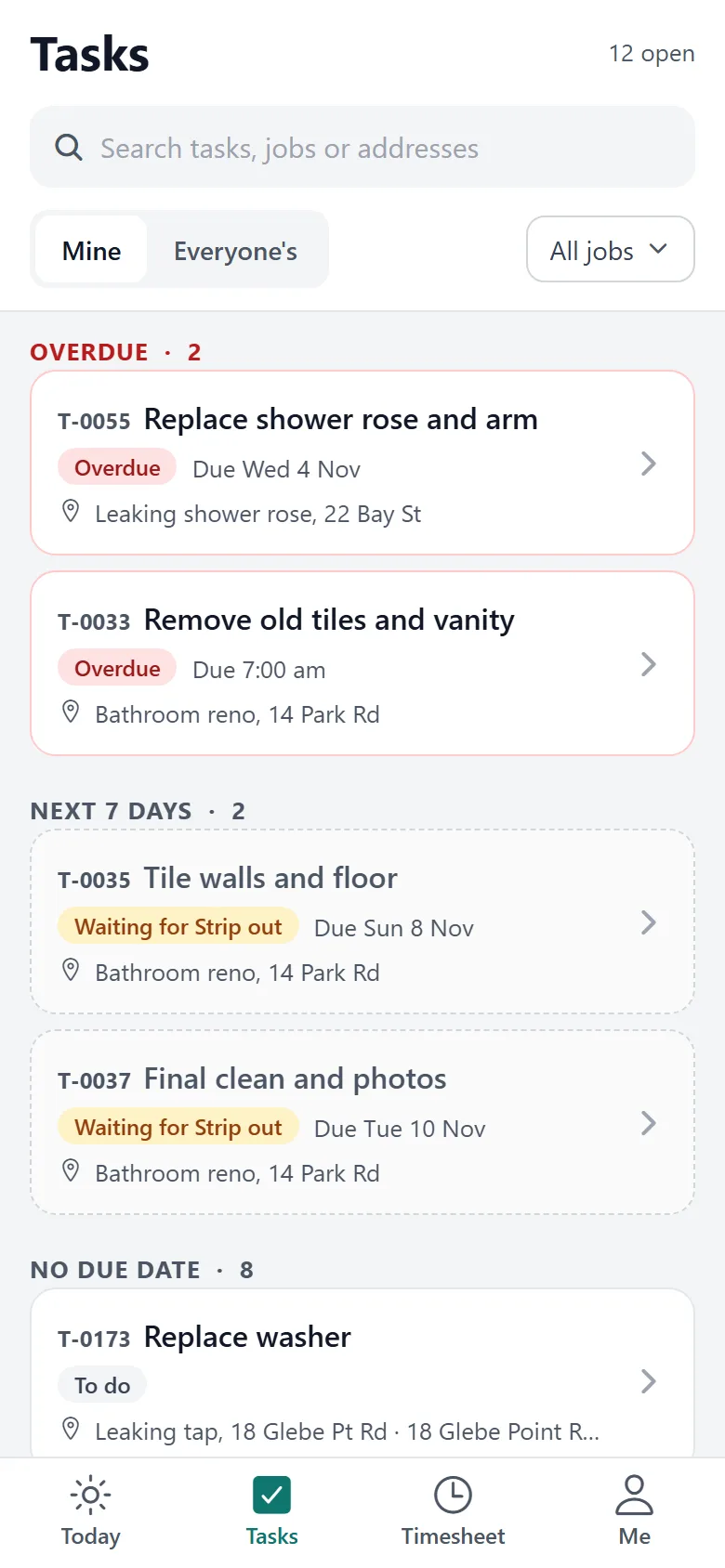
One app for the whole team, in your colours. The crew see their work for today, check in on site, take photos, ask for materials and submit timesheets.
Crew phone app
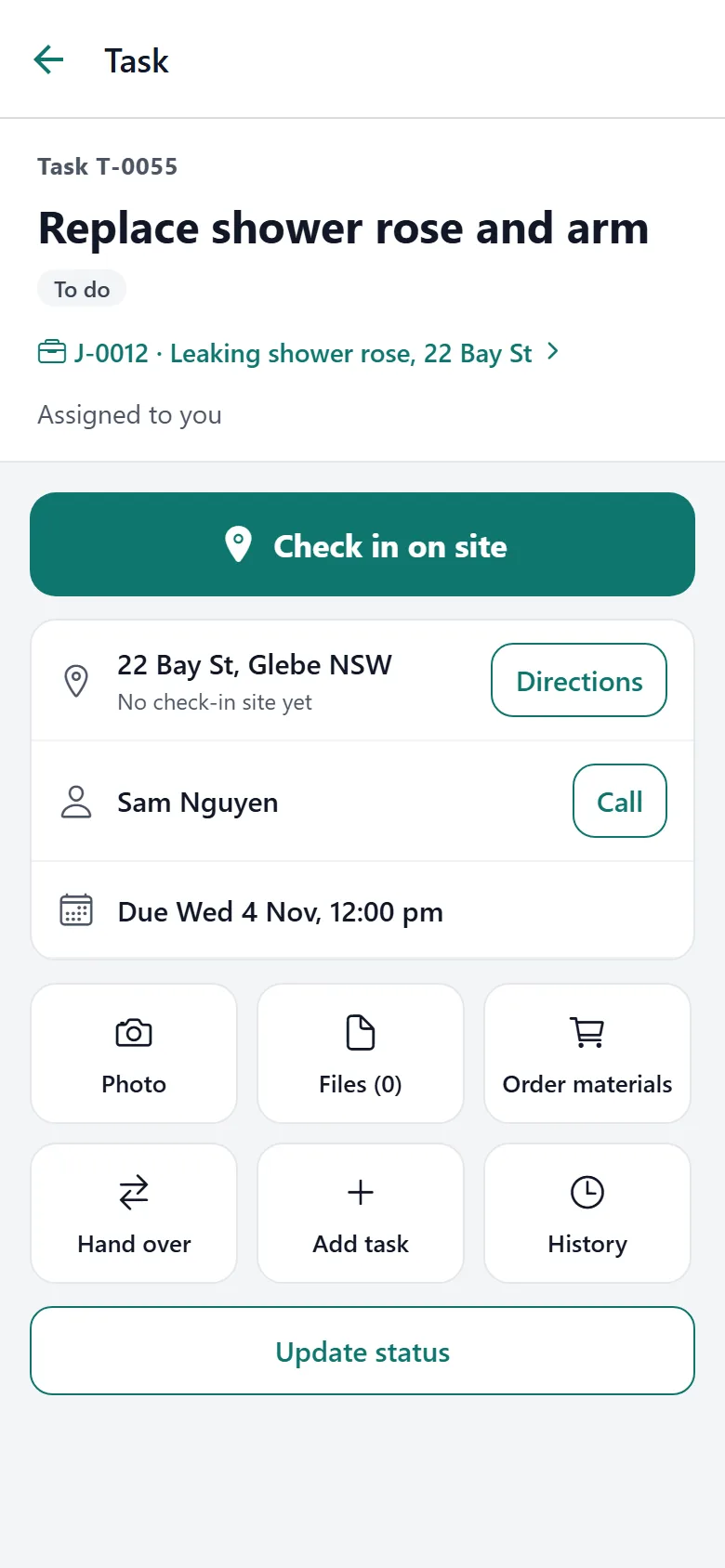
One app for the whole team, in your business’s name and colours; sign in once and stay signed in. The Today screen shows what is overdue and due today, and the Tasks tab groups your work by when it is due, with tasks waiting for an earlier step marked. Open a task to check in on site with one tap, get directions, call the customer, take a photo, open the job’s documents, ask for materials, hand it over or add a task. Check in and out with breaks, see your timesheet, add forgotten hours and submit it. Record a delivery that arrives on site with a photo of the docket, and keep your licences and tickets up to date. Managers do the day-to-day from the phone too: approve timesheets or send them back, set forgotten check-outs, give out tasks, move jobs on, share a quote with the customer, and price and approve purchase orders. Setting up the business stays on the computer.
Site photos and job documents
Take a photo against a task from the phone, and see it later on the phone or the website, with who took it and when. Quotes, certificates, plans and test results (PDF, Word, Excel) can be added to a job or to a single task, and the crew opens them on site. A wrong photo can be removed and restored; nothing is ever deleted.
Arrive and leave alerts
The phone notices when someone arrives at a task's place and when they leave it: it reminds them to check in or out, or, where you choose Automatic, checks them in on arriving and out once they have been away for the minutes you set (5 by default), at the time they left. Set it for the whole business, per task, or on a workflow's tasks. It watches only the places of each person's own tasks that day, never in between, and every automatic check-in or out is marked and can be undone. (Growth plan and up, or as an add-on; needs the phone app with location allowed all the time.)
Order of the day
A manager numbers a crew member's stops for the day (1 = the job to attend first) from the Schedule or the Jobs page, and their route, their phone and the Google Maps directions follow that order. They are told the new order straight away. You choose which roles can set it and whose days can be ordered (for example project managers for the ground staff). (Every plan.)
Where each task is done
Not every task is at the job's address: mark a task as office work (quoting, ordering, paperwork) and it never puts anyone on the road, or give it its own address (a pickup from the supplier, a council inspection) and it becomes its own stop on the route, with check-in measured from there. Workflows can mark their office tasks once. (Every plan.)
Site check-in and time on jobs
The crew check in and out of their tasks on the phone, and it only works when they are on site (within a radius of the job you set, 100 m by default). Breaks are taken off, and moving to another task on the same job splits the time per task. You can require people to be checked in before they start or finish a job’s tasks. Forget to check out? They get a reminder, then whoever created the job is told, and a manager sets the real time with a reason. Each job shows the hours by person and, for owners, the labour cost, with staff and contractors shown separately. (Growth plan and up, or as an add-on.)
Timesheets
Weekly or fortnightly timesheets built from check-ins, with hours added by hand for travel, the yard or a forgotten check-in (with a reason, flagged for the manager). Each day shows the hours, breaks and anything to check, with time over the usual day or week marked. People submit once the period ends and get a reminder if they forget; a manager approves or sends it back with a note, and approved hours are locked. Export approved hours as a spreadsheet for your payroll system (contractors and labour hire left out). Overtime and award rates are worked out in your payroll system. (Growth plan and up, or as an add-on.)
Location sharing
Workers choose when to share their location. Managers see where the crew is during the day, each with a link to the map, and on each job who is closest to the site right now. (Growth plan and up, or as an add-on.)
Vehicles and equipment
Assign a van or a piece of equipment to a job, with your own resource types. Add your whole fleet at once from a spreadsheet, and export it any time. (Growth plan and up, or as an add-on.)
Stock and buying
Ask suppliers for prices, send purchase orders, record deliveries and check bills, with every cost landing on the right job.
See it full size ↗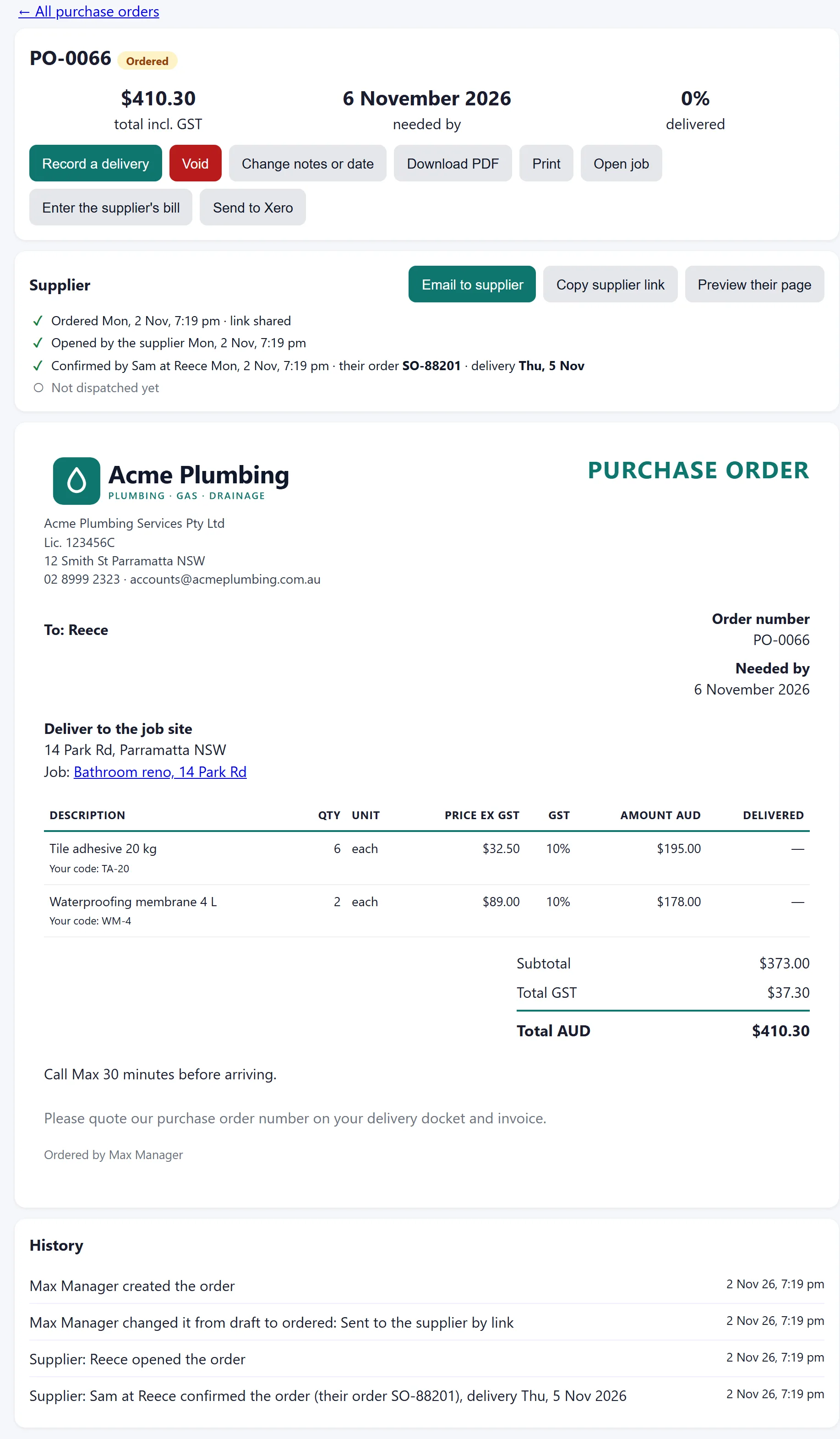
The supplier opens the order from a link, with no account: they confirm it with their order number and delivery date, mark it dispatched or report a problem, and you are told.
See it full size ↗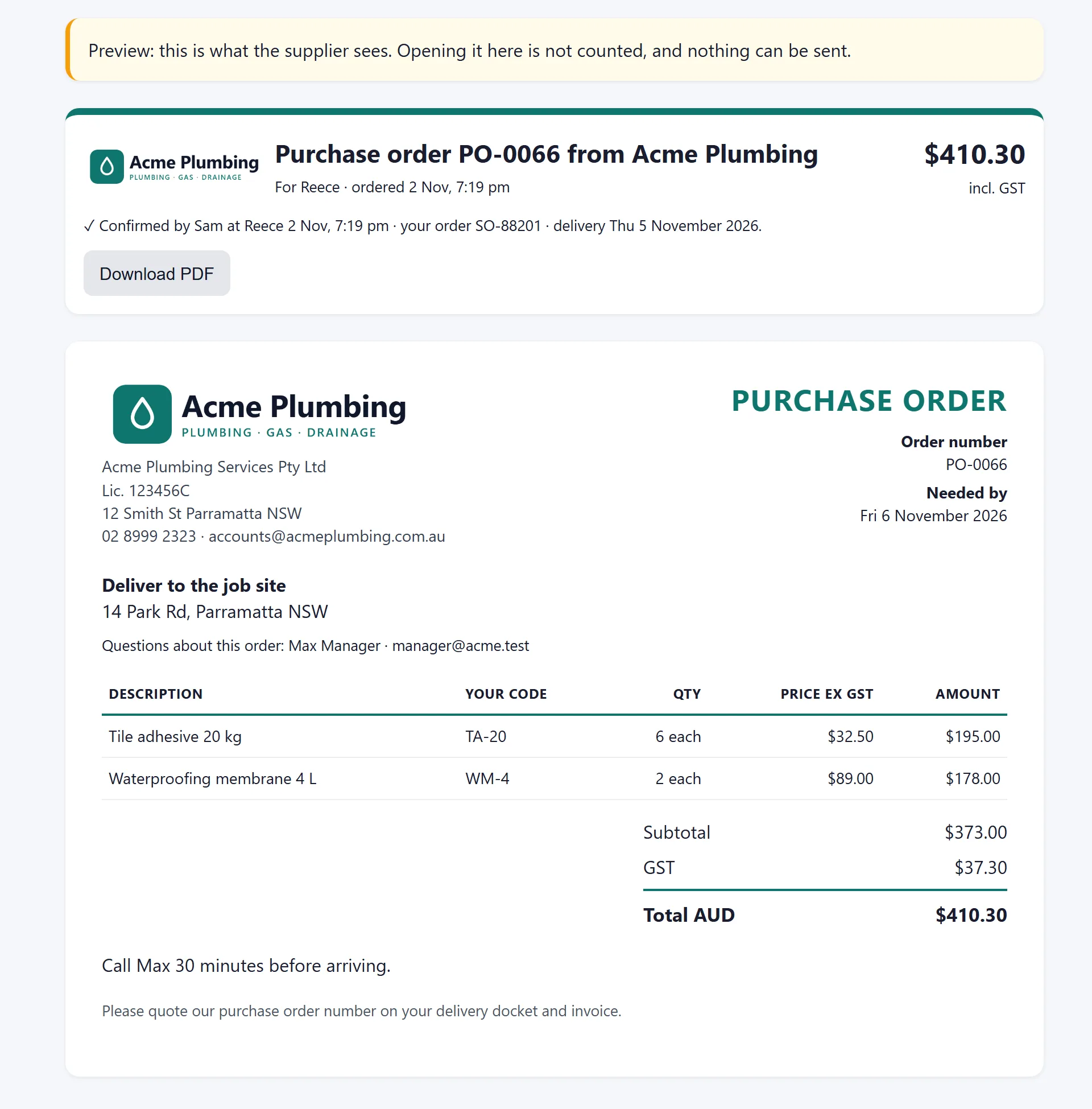
Supplier quotes
Ask two or three suppliers for prices at once. Each gets a private link to type their prices, product codes, lead time and delivery charge, with no account needed, or you type in a price that came by phone or email. Compare them side by side with the cheapest highlighted, choose the best supplier for each line, then turn the choice into your customer's quote with your markup added (the cost and margin are shown only to owners and managers) and into purchase orders, one per supplier, without retyping. Each stock item remembers what every supplier quoted and charged. A job can be set to order only once the customer accepts. (Growth plan and up, or as an add-on.)
Purchase orders
Order from your suppliers with numbered purchase orders: for stock or for a job, delivered to the site, your yard or picked up, with the supplier's own product codes and a needed-by date. Orders over your limit (for example $1,000) wait for an owner or admin to approve them, and show who they are waiting for. Send each order by email (the PDF and a link) or by a link you text the supplier: they open it without signing in, confirm it with their order number and delivery date, mark it dispatched or report a problem, and you are told each time; orders not yet confirmed and supplier problems have their own lists. When goods arrive, record what came (part deliveries too) and the docket number: stock items go into stock at the price paid, and anything for a job goes onto the job's costs, so each job shows what is still on order and what has been delivered. Late orders show in Waiting for me, and managers approve, price, order and record deliveries from the phone app too. Drafts that were never sent, and voided orders, can be removed one at a time or several at once, and restored later. (Growth plan and up, or as an add-on.)
Materials from the crew
Crew ask for materials from the phone app or a job's page (“6 m of 20 mm copper by Thursday”). A manager orders it from a supplier in a couple of taps (a purchase order delivered to the site), gives it from stock, or says why not, and the person who asked is told each time, and again when it arrives. Crew record deliveries that arrive on site, with a photo of the docket, and never see prices. Requests that are no longer needed can be removed (and restored). (Growth plan and up, or as an add-on.)
Supplier bills
Enter a supplier's bill from its purchase order: it fills in what was delivered at the order prices, so you only change what differs. Price rises, charges that were not on the order, and bills for more than was delivered are flagged, and approving a bill that does not match needs a note. Approved bills show as the real cost on the job, are paid and recorded here, and for Enterprise go to Xero with your purchase orders, with payments made in Xero read back. (Growth plan and up, or as an add-on; Xero on Enterprise.)
Stock and materials
Items with codes, categories, locations and a supplier to reorder from. Bring in your whole price list or stocktake from a spreadsheet (you see what each row will do first), and export it back out. Record what a job used and hand back what is left. Every change to a count is logged with a reason. (Growth plan and up, or as an add-on.)
Reorder list
Every stock item at or below its reorder level, grouped by supplier with the quantity to order, and what is already on order. Tick and make one purchase order per supplier, or ask suppliers for prices first. (Growth plan and up, or as an add-on.)
Suppliers
Keep the businesses you buy from in one place: account number, payment terms, phone and the people you deal with, such as your sales rep. Choose the supplier on each stock item, or add a new one right there, and see everything you buy from them. (Growth plan and up, or as an add-on.)
Team, access and records
Who works for you, what they are licensed for and what they may see, with a history of every change and nothing ever lost.
Team and employment details
Each person’s employment type (full-time, part-time, casual, fixed-term, apprentice, contractor or labour hire), position, start date, ordinary hours, award and classification, pay basis and charge-out rate, and an emergency contact, with a history of every change. Pay is seen only by owners, admins and the person; tax file numbers and bank details stay in your payroll system. When you give out work, each person’s employment shows beside their name (for example contractor, or apprentice, 2nd year), and you are warned when only apprentices are on a job, as they need a qualified person to supervise them.
Licences and tickets
Record each person’s licences and tickets (White Card, electrical, plumbing and gas fitting licences, ARCtick, working at heights, first aid, driver licence, contractor licence, insurance and more) with their numbers and expiry dates. People can add their own, and a manager marks each one as checked. Reminders go to the person and the office 30 days before a licence expires and when it has, and the dashboard and team list show what is running out. Tasks and workflow tasks can say which licences they need: give one to someone without a current licence and you get a warning.
Roles and access
Owner, admin, manager and worker, plus custom roles with access to exactly the parts you choose. Workers only see jobs they own or have a task on.
Safe sign-in
Email and password sign-in with invitation emails and password reset, plus authenticator-app codes as a second step: required for owners, admins and console administrators, optional for everyone else. Each business is kept separate from every other, and the owner can download all of their business's data at any time.
Nothing is hard-deleted
Removing something hides it. A manager can see recently removed items and restore them.
Task history export
Export a task’s full history to Excel when a customer or an auditor asks what happened and when.
Your name on it
Your logo, colours and business address. A custom web address on the Enterprise plan.
Your own branding
Your business address shows your name, logo and colours, and your own icon in the browser tab and on phone home screens (upload a square picture in Business settings; without one, the OzTrady icon shows). Quotes, invoices and purchase orders carry your letterhead.
Partner branding
Resellers and franchise groups can run OzTrady under their own brand and onboard businesses themselves.